
Servers
How we put your site on a VPS
You rent an Ubuntu box. We put the site on it, turn on HTTPS, and hand you admin. You pay the host. Hostinger if you still need a server.
Buying the zip and promising you’ll “host it later” is how sites rot in Downloads. A Flask template only helps if it is on a real domain with a lock in the address bar. That is the work behind Get it online ($149) and the bigger plans.
We are not a hosting company. You rent the server. We put the Flask app on it, turn on HTTPS, and hand you /admin.
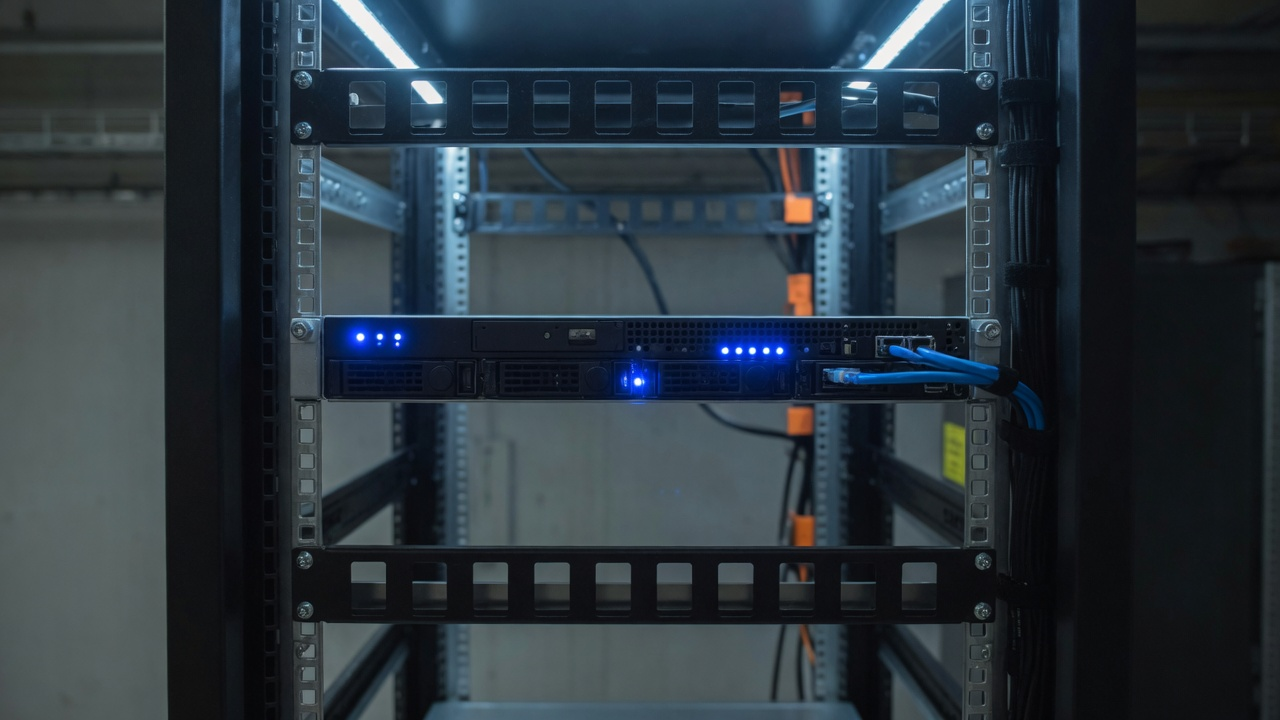
What you need before we start
- A domain (or we’ll tell you how to point one you already own).
- A Linux VPS you control — Ubuntu 22.04 or 24.04, root or a sudo user, SSH.
- Which design you bought — Kiln, Fieldwork, Stormridge, or any of the fifteen.
- If you don’t have a box yet: the Hostinger banner above, or the $49 Help me get a server add-on.
Hostinger KVM 1 (or the current cheap Ubuntu plan) is plenty. DigitalOcean / Hetzner work the same. The monthly invoice is theirs, not ours.

1. Point the domain at the box
At your registrar (Hostinger DNS if the domain lives there), set:
- A record, name
@, value = the VPS IPv4. - CNAME
www→ your apex domain (or a second A to the same IP).
Do not “connect the domain” to Hostinger website hosting if the site will run on a VPS. Website hosting and VPS DNS are different screens. Wait until nslookup yourdomain.com shows the VPS IP before we issue HTTPS.
2. Packages on Ubuntu
On the VPS:
sudo apt update
sudo apt install -y python3 python3-venv python3-pip nginx certbot python3-certbot-nginx
We never run the Flask debugger on the public internet. Production is gunicorn behind nginx.
3. Unpack the template

The app is not a folder of HTML. It is a Flask project. Each design’s app.py imports our shared CMS, so the layout on disk looks like this:
/var/www/yoursite/
  shared/                 # CMS, admin, forms
  packs/
    kiln-bakery/          # or fieldwork-estimate, etc.
      app.py
      templates/
      static/
      content.json
Working directory for gunicorn is the pack folder. PYTHONPATH is /var/www/yoursite so shared imports resolve. If you only unzip the pack and skip shared/, it will not start. That is why Get it online exists.
sudo mkdir -p /var/www/yoursite
# we copy shared/ and packs/<slug>/ here
sudo python3 -m venv /var/www/yoursite/.venv
sudo /var/www/yoursite/.venv/bin/pip install flask gunicorn python-dotenv py7zr
4. Secrets in .env
In /var/www/yoursite/.env (mode 640, owned by the service user):
FLASK_ENV=production
SECRET_KEY=long-random-string
PUBLIC_ORIGIN=https://yourdomain.com
CONTACT_EMAIL=you@yourdomain.com
ADMIN_USERNAME=admin
ADMIN_PASSWORD=change-this-now
Default demo login is not for production. We set a new password and tell you once, by email.
5. gunicorn as a service
Flask’s built-in server is for laptops. Live traffic goes through gunicorn on localhost, not port 80:
[Service]
User=www-data
WorkingDirectory=/var/www/yoursite/packs/kiln-bakery
Environment=PYTHONPATH=/var/www/yoursite
EnvironmentFile=/var/www/yoursite/.env
ExecStart=/var/www/yoursite/.venv/bin/gunicorn --bind 127.0.0.1:8004 --workers 2 --timeout 120 app:app
Restart=always
Swap kiln-bakery for your pack slug. Enable the unit, confirm curl http://127.0.0.1:8004/ returns HTML before touching nginx.
6. nginx and HTTPS
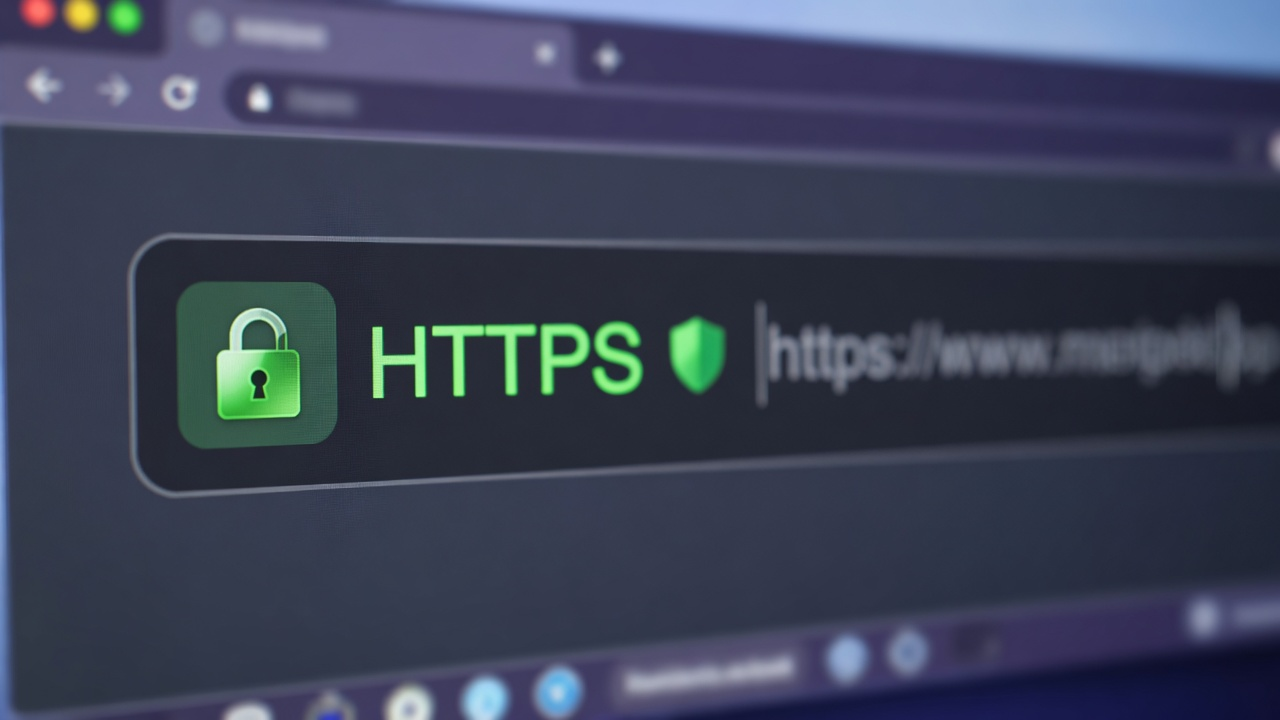
nginx listens on 80/443 and proxies to 127.0.0.1:8004:
server {
    listen 80;
    server_name yourdomain.com www.yourdomain.com;
    location / {
        proxy_pass http://127.0.0.1:8004;
        proxy_set_header Host $host;
        proxy_set_header X-Forwarded-Proto $scheme;
        proxy_set_header X-Real-IP $remote_addr;
    }
}
Then:
sudo nginx -t && sudo systemctl reload nginx
sudo certbot --nginx -d yourdomain.com -d www.yourdomain.com
We usually 301 www to the apex. Let’s Encrypt auto-renew is the default certbot timer on Ubuntu.
7. Admin, then you
Open https://yourdomain.com/admin. Change the password if we haven’t already. Edit Home, About, Contact, titles. Replace demo photos if you bought the photo add-on or sent your own.
Do not submit the site to Google until the name, email, and hours are real. That is the other guide: Don’t send Google to a half-finished site.
What we do vs what you do
- Do it yourself — you get the files. You do every step above. Email us if you get stuck; we can still quote Get it online.
- Get it online ($149) — you bring domain + Ubuntu VPS. We do steps 1–7. You write the words.
- Ready to show people ($349) — same install, plus we write it like your business and set titles.
- Launch it properly ($549) — that, plus photos, Search Console/Bing, five backlinks.
- Help me get a server ($49) — we walk you through opening the Hostinger (or other) VPS first.
When something fails
HTTPS won’t issue until DNS is actually on the VPS. If certbot says unauthorized, run nslookup from a second network. Old A records at the registrar are the usual culprit. Don’t “connect website hosting” and VPS on the same hostname.
If gunicorn starts and nginx shows 502, the bind address or port is wrong — we use 127.0.0.1:8004 unless that port is taken. If the app crashes on import, shared/ is missing from PYTHONPATH. If admin 404s, you’re in the wrong pack folder.
Need the box? Use the Hostinger banner at the top of this page. Then pick a plan or email dts.templates.admin@gmail.com with the domain and SSH details. Prices: pricing. Here’s how a job with us runs: look, pick, we stop. After it’s live, read don’t send Google to a half-finished site before Search Console.
Other notes
- What a contractor site should show on day one
- You don’t need property software on day one
- Don’t send Google to a half-finished site
All notes · Plans · Pricing · Designs · How a job runs · FAQ · Email us